Live demo Interactive photography

Edition

STILL.

An exhibition you can move through.

An interactive photography website that moves from an editorial collection into spatial galleries, cinematic sequences and a focused image Viewer. The working demo brings 24 sample photographs together in three collections, with nine gallery views, five showreels and three ways to respond to a photograph.

Explore the working demo, or keep the complete PDF guide.

24sample photographs
9gallery views
5cinematic showreels
3interaction styles
The project

An editorial start.
A spatial finish.

An editorial entry point

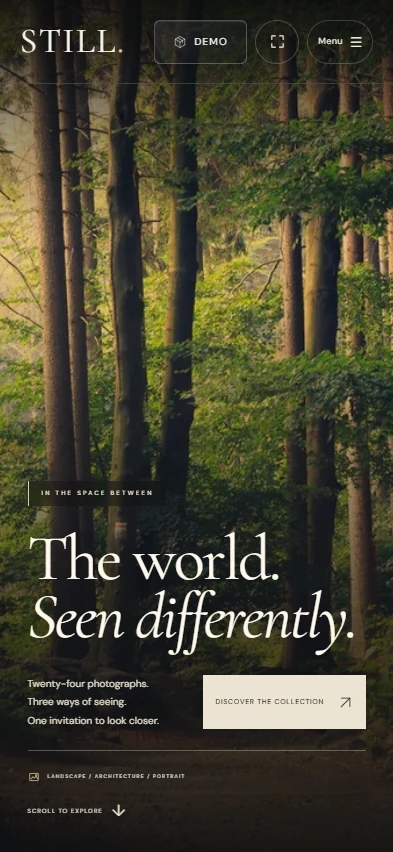
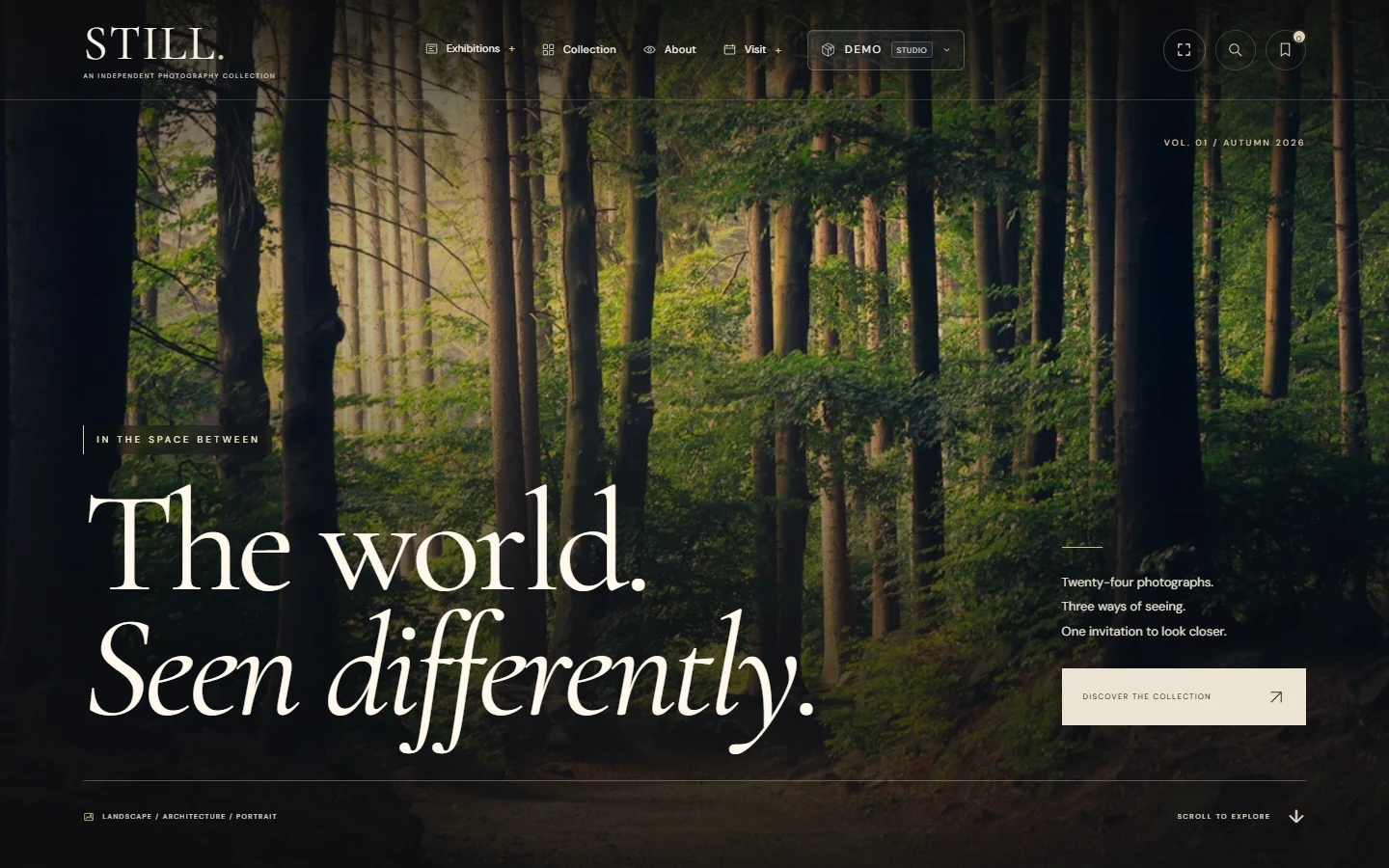
The homepage introduces photography through restrained navigation, generous spacing and expressive serif typography. Landscape, architecture and portrait collections give visitors a clear starting point before the presentation becomes more spatial.
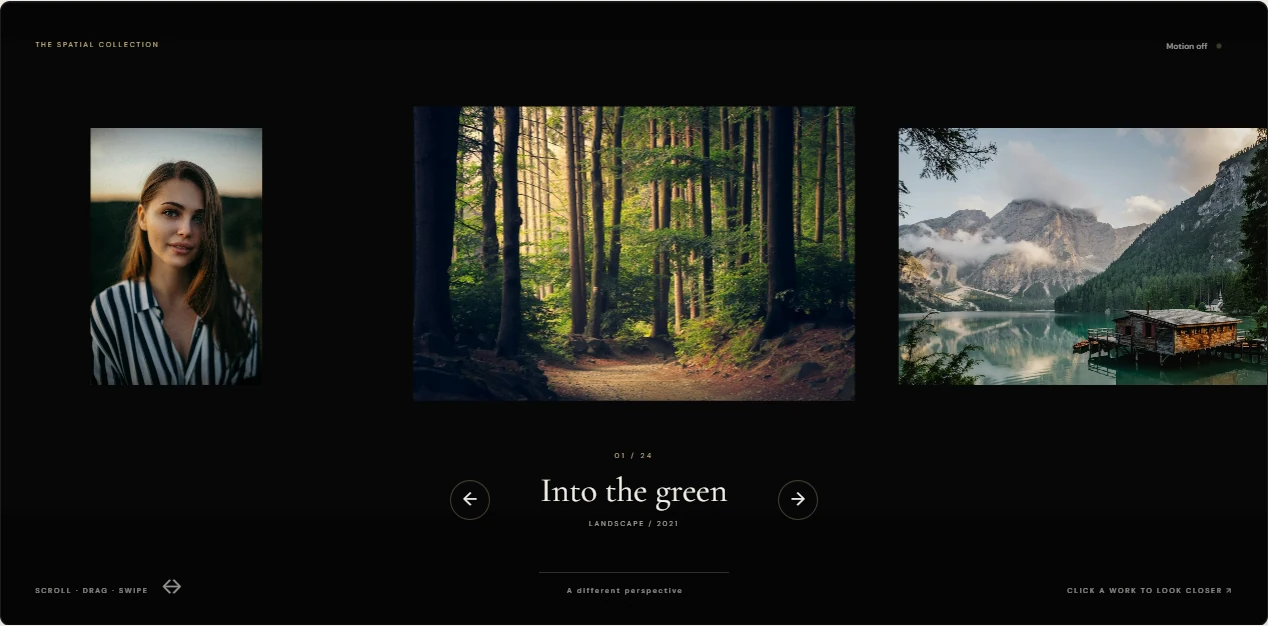
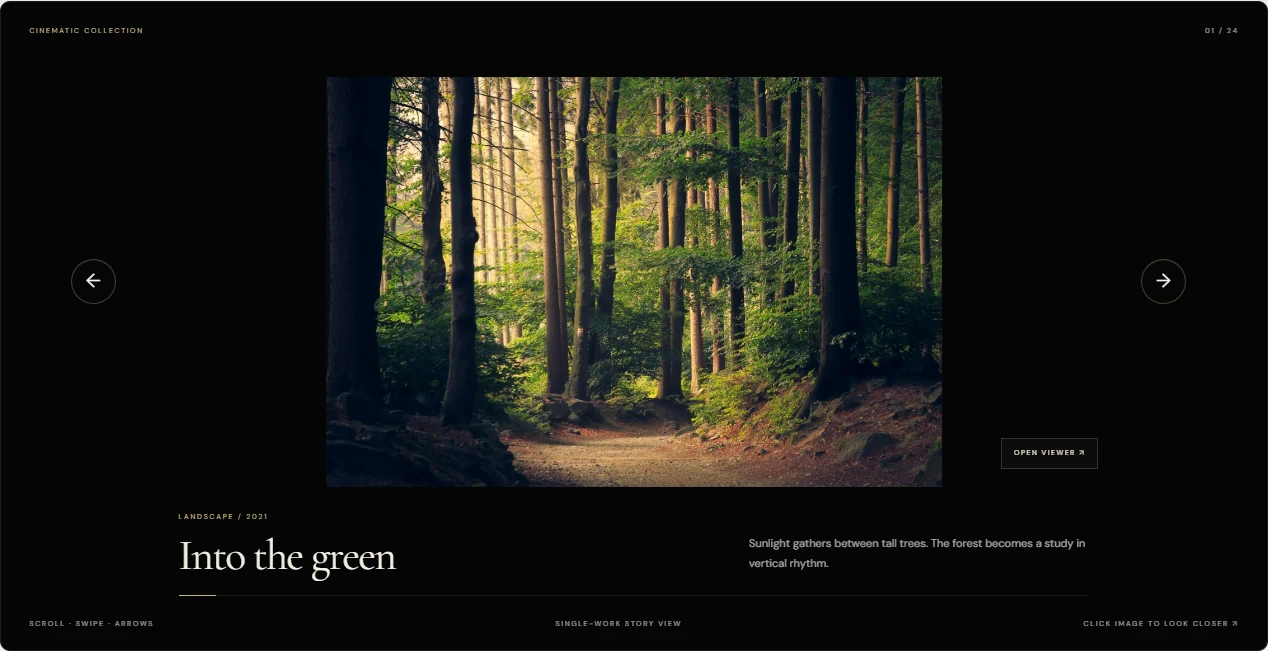
One collection, different ways of looking

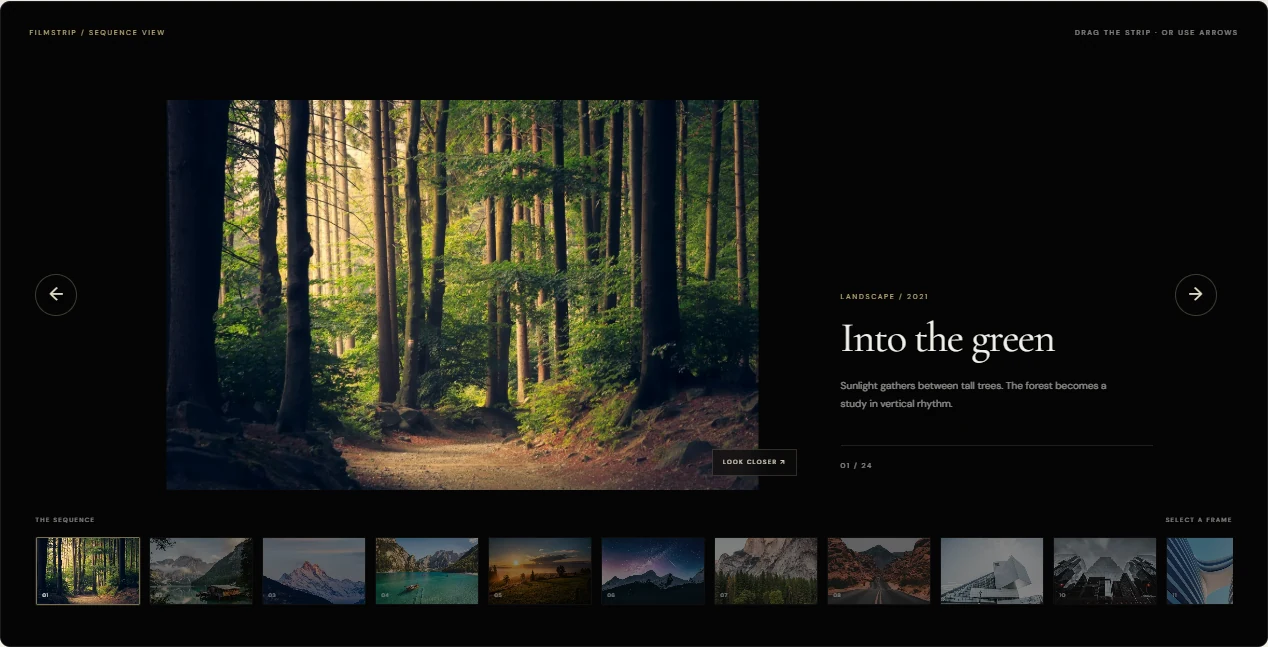
A visitor can compare the same photographs across a contact sheet, a cinematic frame, a filmstrip and perspective-based scenes. Opening a photograph brings its title, caption and interaction tools into the Viewer, keeping the current collection as the browsing context.

A working front-end demonstration

The gallery, Viewer, rendering, player and local interactions are implemented. Contact and booking examples demonstrate complete interface flows; they do not operate an email, payment or real appointment service.

Gallery experiences

Nine views.
One collection.

Open a view below for its purpose and the exact clicks needed to reach it. DEMO STUDIO is available in the header on desktop and mobile.

Immersive preview

Cinematic preview

Filmstrip preview

The same photograph. A new perspective.

Compare three captures of the same photograph, then open the live demo to try the complete collection.

EditorialIndex, Cinematic, Filmstrip, Wall, Light table
SpatialImmersive, 3D grid, Orbit, 3D tunnel
Explore the live collection (opens in a new tab)

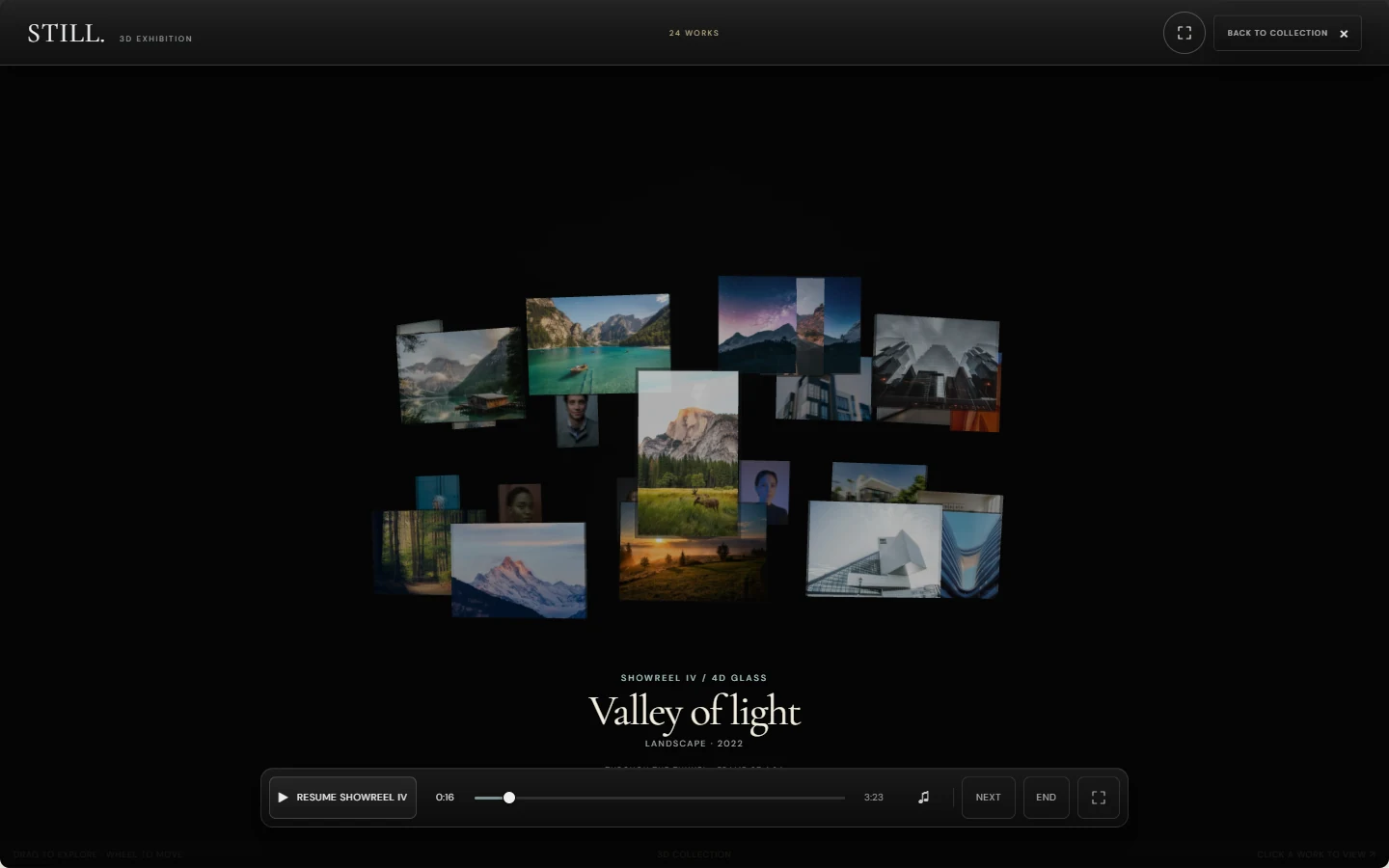
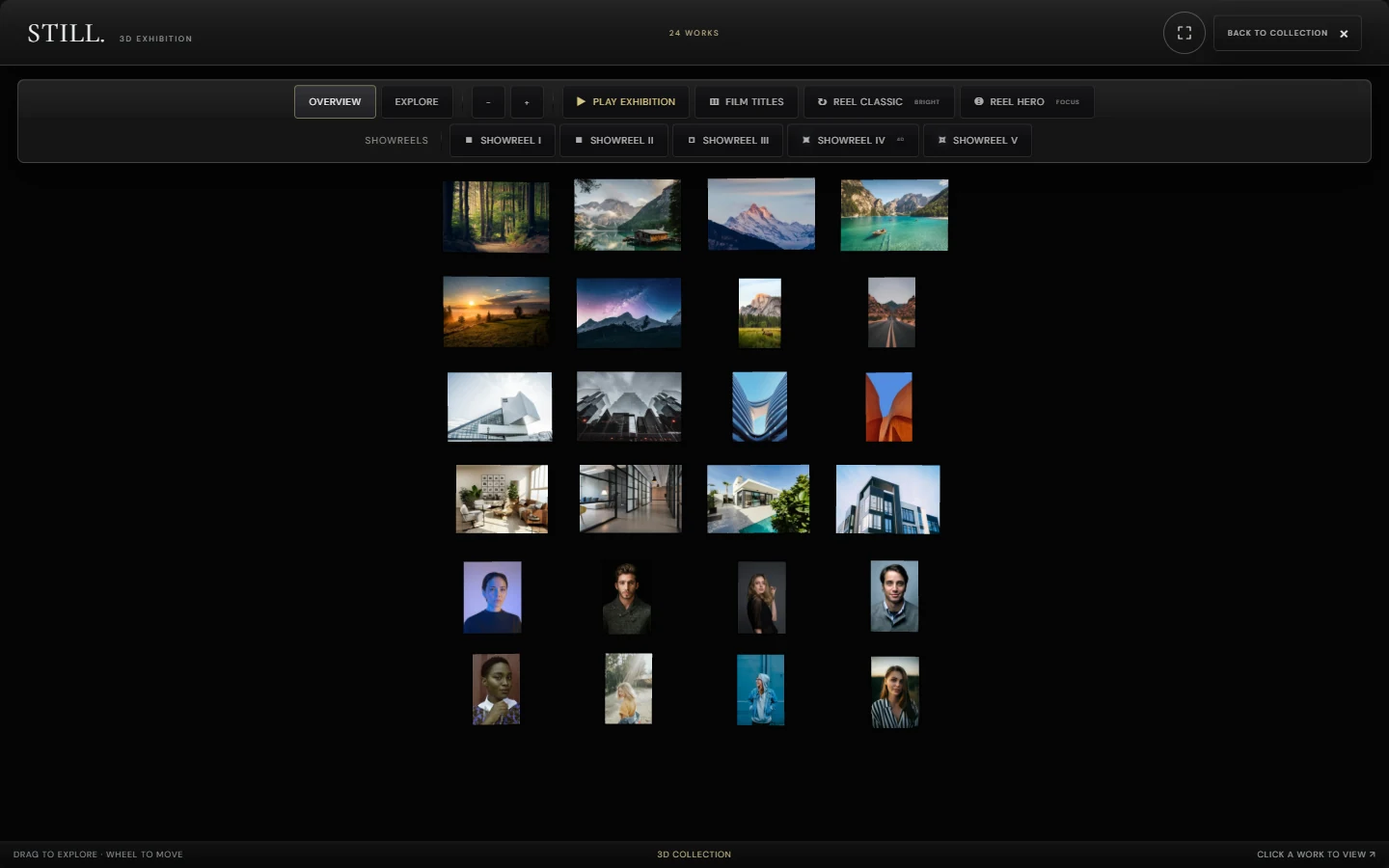
Inside the 3D exhibition

The 3D exhibition also includes short automatic presentation modes, separate from the five full showreels.

Play exhibition

Starts an automatic Drift through photographs and changing layouts.

Film titles

Pairs photographs with cinematic title typography.

Reel classic

Presents a brighter rotating reel of the collection.

Reel hero

Places a featured hero photograph in front of the rotating reel.

Next / End

Moves to the next part or finishes the current presentation.

3D keyboard controls

With focus on the 3D canvas: arrow keys orbit; W/S move in depth; A/D pan horizontally; Q/E pan vertically; [ and ] select a work; Home/End select the first or last work; Enter opens the selected photograph; Space pauses or resumes an active presentation.

The focused Viewer

Look closer.
Keep the context.

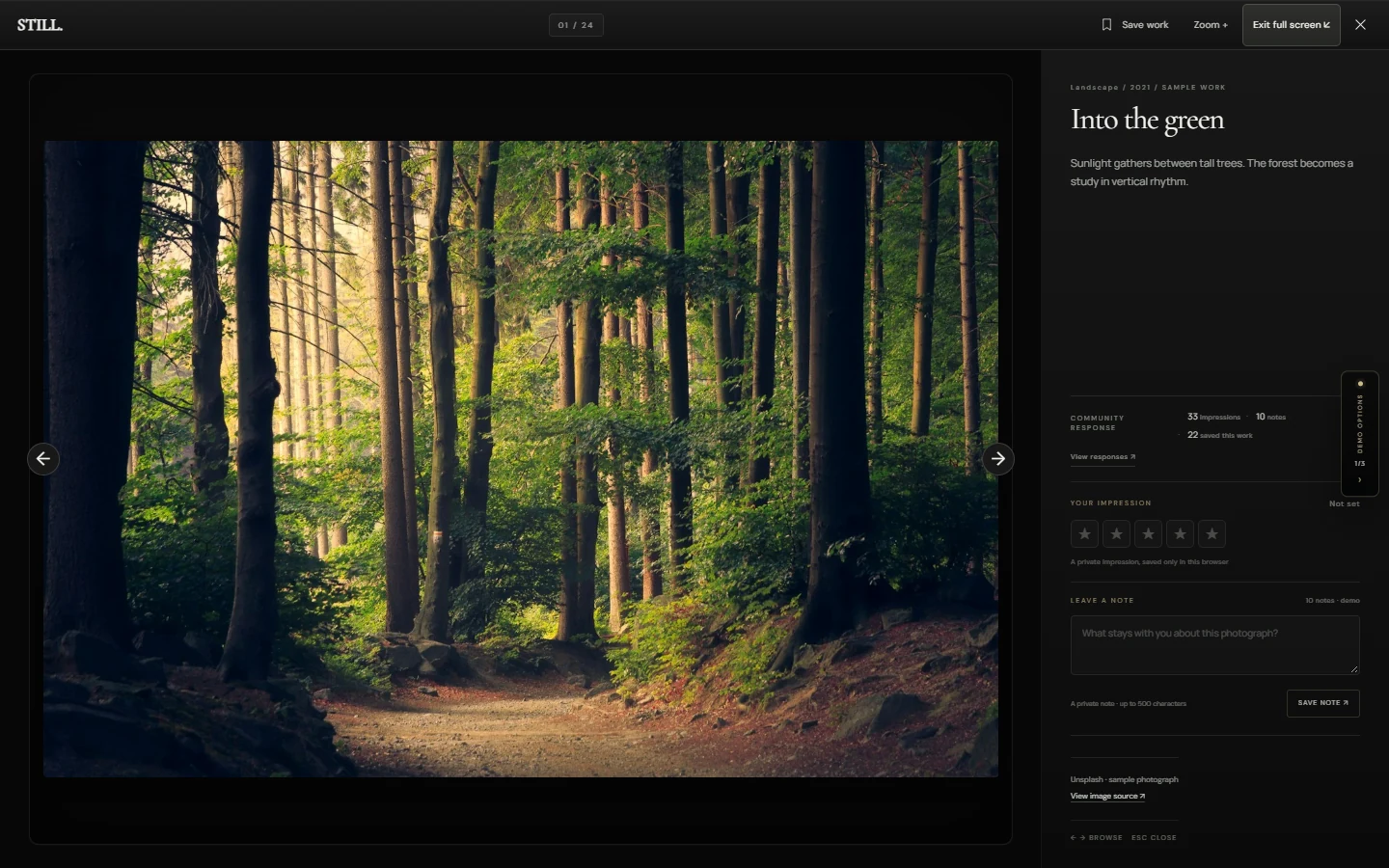
The Viewer is the close-reading layer of STILL: a large photograph, title, category, year and caption, with navigation and tools that stay attached to the current collection.

Open and explore a photograph

  1. Choose Collection in the header
  2. Select a photograph in the image grid
  3. Use Previous / Next or the Left / Right arrow keys to browse
  4. Choose Zoom + for a closer view, or Full screen for the largest supported display
  5. Choose Close or press Escape to return

Save work

Adds the photograph to a personal collection stored in this browser. Reopen saved work from the bookmark icon in the site header.

Zoom +

Magnifies the work; moving the pointer changes the focus of the enlarged view. Swipe navigation is available when the image is not zoomed.

View image source

Opens the source of the sample photograph.

DEMO OPTIONS

Changes the interaction style on the same photograph: Curatorial, Community rating or Private rating.

Three ways to respond

Change style through DEMO STUDIO, or use DEMO OPTIONS while a photograph is open. Personal responses stay in the current browser; the community figures are illustrative sample data.

Curatorial

An editorial response panel combines sample impressions, notes and saves with a private five-level impression and a note of up to 500 characters. View responses opens illustrative notes.

How to try it

  1. Open DEMO STUDIO in the site header
  2. Choose Photo interactions
  3. Choose Curatorial
  4. In the Viewer, explore View responses, Your impression and Leave a note
Community rating

A five-star response and feedback sit alongside a demonstrational average and rating count. The displayed community figures are sample data; your own response stays local.

How to try it

  1. Open DEMO STUDIO in the site header
  2. Choose Photo interactions
  3. Choose Community rating
  4. In the Viewer, choose a rating or write feedback
Private rating

A restrained five-star selector removes the expanded community layer. It gives the photograph a personal rating within the current browser.

How to try it

  1. Open DEMO STUDIO in the site header
  2. Choose Photo interactions
  3. Choose Private rating
  4. In the Viewer, select a star rating
Cinematic presentations

Five cuts.
Different journeys.

Choose a complete edition through DEMO STUDIO > Presentation > Showreels I-V. Each cut combines photography, transitions and a synchronized soundtrack.

Original cutCinematic edition

The original sequence moves through the opening, Drift, Film titles, Reel classic and Reel hero before the credits, accompanied by its first soundtrack.

How to try it

  1. Open DEMO STUDIO in the site header
  2. Choose Presentation
  3. Choose Showreels I-V
  4. Choose Original cut
Extended cutCinematic edition

A longer choreography extends the cinematic phases and includes Afterimage, with a second soundtrack.

How to try it

  1. Open DEMO STUDIO in the site header
  2. Choose Presentation
  3. Choose Showreels I-V
  4. Choose Extended cut
Portal flipCinematic edition

An alternative cut introduces deformation and transition treatments, including Portal Flip.

How to try it

  1. Open DEMO STUDIO in the site header
  2. Choose Presentation
  3. Choose Showreels I-V
  4. Choose Portal flip
4D glassCinematic edition

A glass-tunnel sequence explores depth and fractured photographic surfaces before the credits. 4D names the presentation style, rather than a technical fourth-dimensional display.

How to try it

  1. Open DEMO STUDIO in the site header
  2. Choose Presentation
  3. Choose Showreels I-V
  4. Choose 4D glass
DeltyWeb constellationCinematic edition

The finale moves through a glass tunnel, breaks photographs into particles, forms the DeltyWeb wordmark in dust, and reconstructs a photographic wall before the credits.

How to try it

  1. Open DEMO STUDIO in the site header
  2. Choose Presentation
  3. Choose Showreels I-V
  4. Choose DeltyWeb constellation
Demo Studio & form layouts

Compare the interface.
Follow the whole flow.

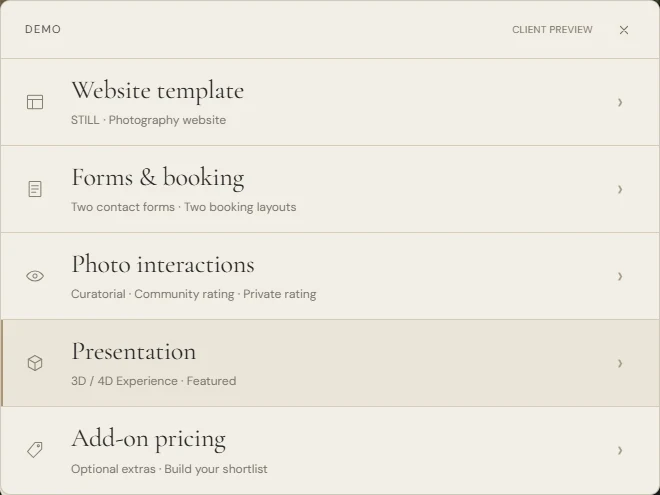
DEMO STUDIO is the central comparison menu. It groups the website template, photo interaction styles, presentation modes, contact and appointment layouts, and an add-on shortlist.

Start in Demo Studio

  1. Open DEMO STUDIO in the header
  2. Choose Website template, Forms & booking, Photo interactions, Presentation, or Add-on pricing
  3. Use the Back entry to return to the previous level

Website template

Template details and Get this template introduce the template and configuration options.

Add-on pricing

Choose items for a shortlist and preview a project enquiry. This is an enquiry/configuration demonstration, not a checkout.

Contact - Editorial

An ivory layout presents the enquiry fields together, followed by a review and an explicit demo result.

How to try it

  1. Open DEMO STUDIO in the site header
  2. Choose Forms & booking
  3. Choose Contact forms
  4. Choose Editorial
  5. Complete the fields and choose Review enquiry
  6. Review the summary; choose Edit details if needed
  7. Choose Complete demo

The result confirms that the message was not sent.

Contact - Studio flow

A Black Glass layout separates topic selection, contact details and message review into guided steps.

How to try it

  1. Open DEMO STUDIO in the site header
  2. Choose Forms & booking
  3. Choose Contact forms
  4. Choose Studio flow
  5. Choose a topic, then Continue
  6. Enter the name, email and message; choose Review enquiry
  7. Choose Complete demo

New enquiry and Compare layouts are available after the demo. No email is sent.

Booking - Editorial

A calendar, an available time slot and visitor details share one view. Completing the flow stores a local demo slot and shows a confirmation.

How to try it

  1. Open DEMO STUDIO in the site header
  2. Choose Forms & booking
  3. Choose Appointment booking
  4. Choose Editorial
  5. Select an available date and time, then complete the details
  6. Choose Book appointment
  7. Try Cancel demo reservation, Book another appointment or Reset demo availability

This only reserves a demo slot in the current browser. It does not create a real appointment.

Booking - Studio flow

Date and time, visitor details and review are separated into a guided sequence. Both booking layouts share the same local demo availability.

How to try it

  1. Open DEMO STUDIO in the site header
  2. Choose Forms & booking
  3. Choose Appointment booking
  4. Choose Studio flow
  5. Choose a date and time, then Continue
  6. Complete the visitor details and choose Review appointment
  7. Choose Reserve demo slot; use Cancel this demo slot to release it

Slots use London time and cover the next six months. Saved slot metadata excludes the name, email and note.

These are demonstration flows: messages are not sent, and booking slots are only stored in this browser. There is no real reservation, payment or calendar invitation.

Technology & implementation

Built for the browser.
Layer by layer.

The visual experience combines standard browser interfaces with purpose-built renderers. Each technology has a specific role.

InterfaceHTML, CSS & JavaScript

Navigation, collections, Viewer and form flows.

PresentationWebGL, GLSL & CSS 3D

Photographic depth, camera movement and choreography.

Local behaviourMedia & browser state

Image variants, synchronized audio and personal demo responses.

HTML, CSS & JavaScriptFramework-free front end
Semantic HTML, modular stylesheets and vanilla JavaScript implement the interface. Runtime scripts are classic browser scripts; React, Vue, Three.js and GSAP are not used.
Custom WebGL 1 & GLSLSpatial rendering
Purpose-built renderers draw the Immersive gallery and the 3D exhibition. Vertex and fragment shaders, photograph textures, camera transforms and timeline-driven effects power the spatial and cinematic sequences.
CSS 3D transformsDOM-based perspective views
Orbit and 3D tunnel position real image elements with translate3d and rotateY. These views use CSS perspective rather than a separate WebGL scene.
Native audio & JavaScriptShowreel soundtrack
Three locally hosted MP3 tracks use the browser audio element. Player controls synchronize the soundtrack with the visual playhead, including pause, resume and timeline changes. Playback remains subject to browser audio policy.
WebP image variantsLocal media delivery
Photographs have thumbnail, medium and full-size variants. Thumbnail grids use smaller assets; spatial textures use medium images; the Viewer can request full-size work.
Native dialog & Fullscreen APIsFocused viewing
The Viewer uses a native dialog. Fullscreen requests use the browser API where available; the fallback expands the experience to the viewport without hiding browser controls.
Browser-local statePersonal demo interactions
Saved photographs, ratings, notes, Viewer style and anonymous demo booking slots use localStorage where available. They are not shared with other visitors. Personal form fields remain in page memory.
Node.js build toolsStatic delivery
Custom build tools prepare HTML, CSS, JavaScript and local media with release identifiers and SHA-256 file maps. The deployed site is static; Node.js is not required by the hosting server to display it.

Type & visual language

  • Cormorant Garamond (Exhibition alias): editorial display type
  • DM Sans: interface and supporting copy
  • Manrope: selected interface labels
Gallery black#040405
Editorial paper#F2EEE5
Gallery accent#C8B77F
Gallery graphite#151517
Controls & local behaviour

Choose your pace.

Navigation, motion and personal responses remain visible parts of the experience.

Keyboard and pointer navigation

Gallery and Viewer controls support their documented buttons and keyboard interactions. The 3D canvas has its own keyboard map, while the Viewer uses Left / Right and Escape.

  1. Focus the relevant Viewer or gallery control before using its shortcut

Motion preference

The interface considers prefers-reduced-motion and exposes a visitor motion preference. Automatic and cinematic modes remain experiences the visitor chooses to launch.

  1. Find Reduce motion / Enable motion in the footer, or Motion on/off in Immersive

Full screen

The site, Viewer and player provide fullscreen controls. Native browser fullscreen is used where available; otherwise the experience fills the viewport.

  1. Choose the Full screen icon in the header, Viewer or player
  2. Use the exit control, or Escape when handled by the browser

Local search and saved work

Search looks through photograph titles, captions, categories and years. The bookmark opens saved photographs for this browser.

  1. Use Search photographs in the header to find a work
  2. Choose Save work in the Viewer, then reopen it from the header bookmark

Storage unavailable

When persistent storage is unavailable, the Viewer can keep a response for the current visit and communicates that limitation. Local state is not an account or cross-device collection.

Screens from the working demo

The interface,
in practice.

Fresh captures from the implemented website, shown without cropping. Use the enlarge control for a full-size view. The mobile image is a browser viewport capture.

Project scope

What is implemented.
What the demo represents.

Included in the working demo

  • A working static photography website with local media
  • Three collections, nine gallery views and the focused Viewer
  • Five showreel editions, a finale preview and presentation controls
  • Three photo interaction styles and browser-local saved work, ratings and notes
  • Two contact layouts and two appointment layouts with demo completion states

Implementation notes

  • Photographs and displayed community figures are sample content; they are not client results or real visitor metrics.
  • Contact demos do not send messages. Booking demos store anonymous slots locally; no real reservation, calendar invitation or payment is created.
  • Personal form fields remain in page memory. Local storage belongs to the current browser and is not synced across visitors or devices.
  • Full WebGL scenes and shader effects depend on the browser and GPU. Fallback views retain part of the experience without promising identical effects.
  • Soundtrack playback is subject to browser audio policies. Fullscreen fallback does not hide browser chrome.
  • This guide describes implemented functionality. It does not certify WCAG compliance, fixed frame rates, physical-device coverage, Safari acceptance or a particular hosting configuration.
The complete project, to keep

Your guide
to every perspective.

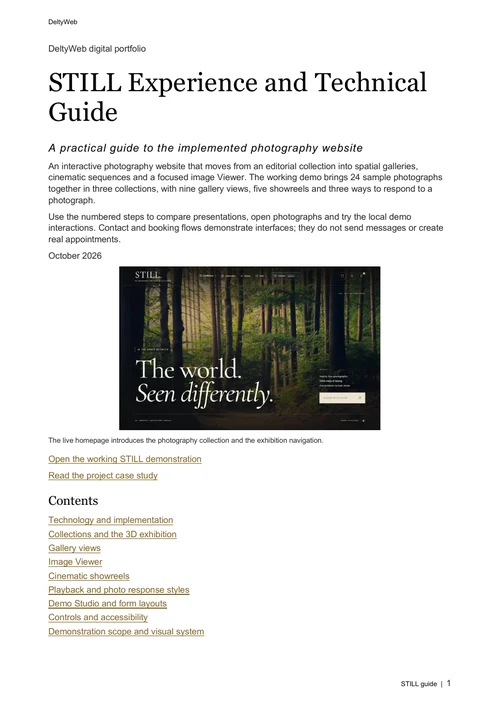
Technology, gallery modes, cinematic editions and exact paths through the demo, brought together in one considered reference.

18 pagesExperience & technologyPDF document
Download the experience guide
Explore the complete project

Read it. Then experience it.

Move through the collection and discover the presentation that speaks to you.